

A keyboard is still one of the most useful tools on a creative desk.
Illustrators use it for shortcuts. Photographers use it for editing commands. Video editors use it for timeline navigation. 3D artists use it for changing views, switching tools, and managing complex software interfaces.
For most creative professionals, there is no reason to give up the keyboard entirely.
But there is another problem.
The more time you spend inside applications such as Photoshop, Lightroom, Clip Studio Paint, Premiere Pro, Blender, or other creative software, the more often you find yourself repeating the same small actions.
Change the brush size.
Zoom in.
Rotate the canvas.
Undo a stroke.
Switch tools.
Adjust opacity.
Move through a timeline.
Change a parameter.
Repeat.
The individual actions are simple. The problem is how often they happen.
This is where a dedicated creative shortcut controller can make sense.
Instead of replacing the keyboard, these compact devices add a second layer of physical controls specifically for the commands creators use most frequently.
Products such as TourBox, Elgato Stream Deck, Loupedeck-style control surfaces, and newer devices such as the DIGIDRAW Kdial Remote K30 all approach the same broader idea from different directions:
What if the tools we use constantly in creative software had their own physical controls?
 The keyboard is a remarkably flexible piece of hardware.
That is also its limitation.
A standard keyboard has to work for almost everything:
Creative software is different.
An illustrator may change brush size hundreds of times during a painting session.
A photographer may repeatedly adjust image parameters while retouching.
An editor may move through the same timeline controls over and over.
A 3D artist may constantly rotate a model, zoom the viewport, change tools, and adjust brush settings.
Keyboard shortcuts can handle these tasks, but they often involve combinations of keys or moving your hand away from the primary creative tool.
For an artist working with a pen tablet, that can mean:
Draw → reach for keyboard → find shortcut → return to tablet → draw again.
Each interruption is small.
But creative workflows are built from hundreds of small interactions.
The idea behind a creative controller is relatively simple.
Instead of putting every possible command on one general-purpose keyboard, you create a dedicated physical interface for the functions you use repeatedly.
A button might be assigned to:
A dial might control:
That changes the interaction from:
Remember the shortcut
to:
Reach for the control.
It is a small distinction, but it can become meaningful during long creative sessions.
 Buttons are excellent for actions with a clear beginning and end.
Press once:
Undo.
Press again:
Redo.
Switch tool.
A dial is useful for something different.
It provides continuous physical control.
Turn the dial clockwise:
Brush size increases.
Turn it back:
Brush size decreases.
The same physical interaction can be mapped to zoom, timeline navigation, opacity, or other adjustable parameters depending on the application.
This is one reason dials have become a recurring feature in creative control hardware.
A physical knob gives the user something tactile to manipulate rather than requiring a keyboard command, mouse movement, or software slider.
For some artists, the connection feels intuitive because the physical movement mirrors the change happening on screen.
The most useful creative controller is not necessarily the one with the most buttons.
It is the one that lets you keep your primary creative tool where it belongs.
For an illustrator:
One hand draws.
The other controls the software.
For a photographer:
One hand can remain on the mouse or keyboard while the other adjusts parameters.
For a video editor:
One hand can navigate a controller while the rest of the workstation remains available.
This is particularly useful when the controller is compact enough to sit next to a drawing tablet or keyboard without forcing the user to constantly change hand position.
That is why one-handed operation has become an important design principle in many dedicated creative controllers.
The increasing popularity of products such as TourBox, Elgato Stream Deck, and Loupedeck-style control surfaces reflects a broader change in the way creative professionals interact with software.
These products are not identical.
Some prioritize a larger number of programmable buttons.
Others are built around physical dials.
Some emphasize application-specific profiles.
Others are designed as more flexible general-purpose control interfaces.
Rather than asking which one is universally "best," a more useful question is:
What kind of physical control does your workflow actually need?
A photographer may value continuous adjustment.
An illustrator may want quick access to brush settings and canvas controls.
A video editor may prioritize timeline navigation.
A 3D artist may want a combination of viewport controls and shortcuts.
The category is therefore becoming less about replacing the keyboard and more about building a control surface around the way people actually create.
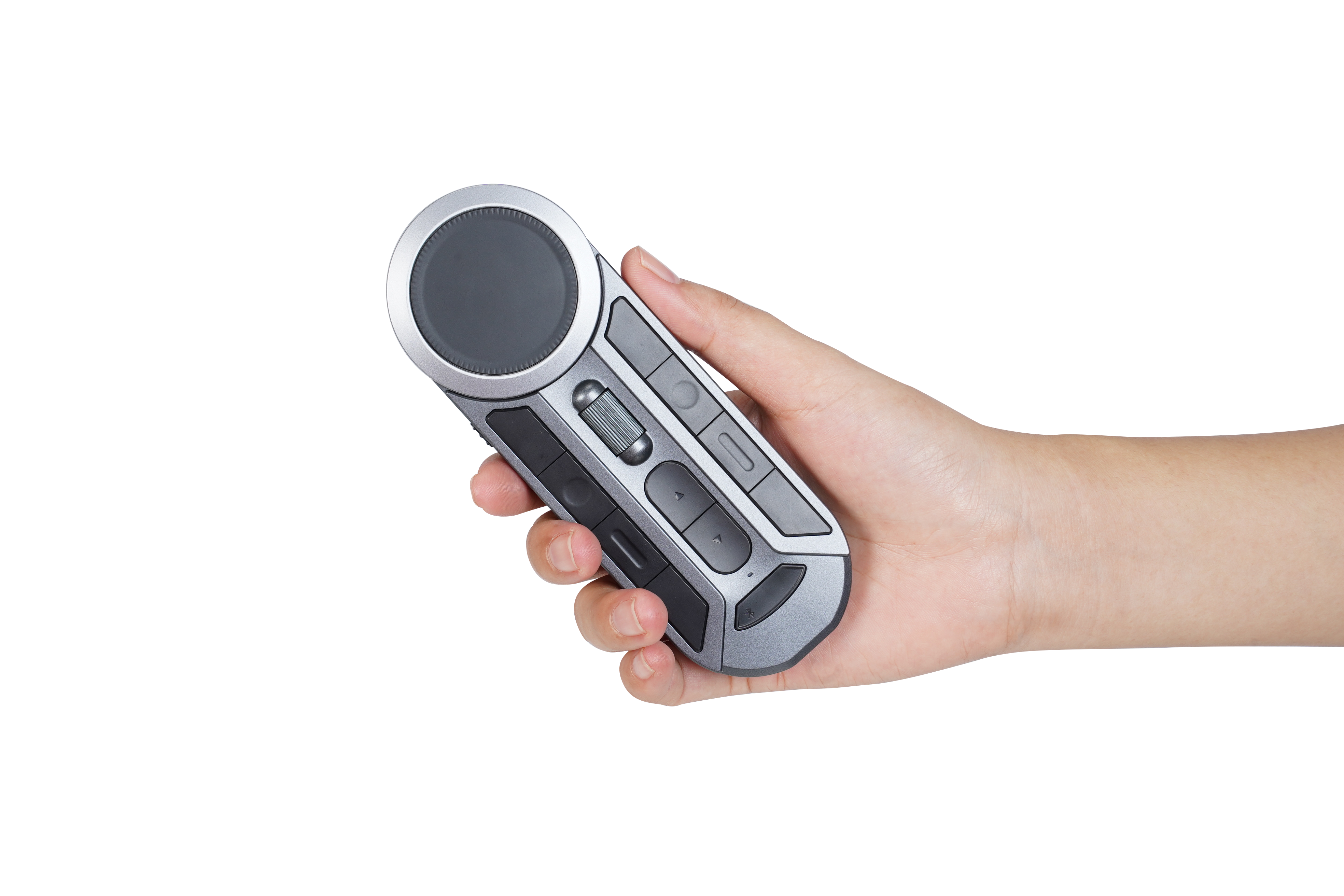
The DIGIDRAW Kdial Remote K30 takes a compact approach to the creative-controller concept.
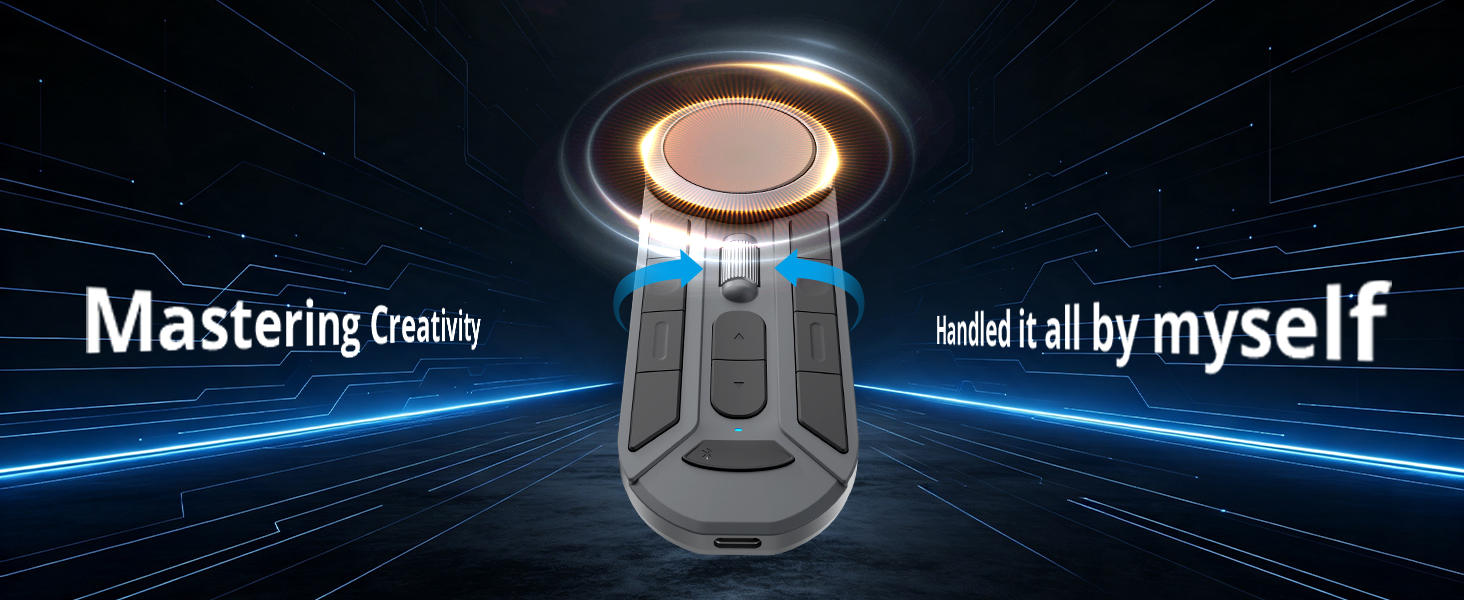
According to DIGIDRAW's product information, the K30 combines 11 customizable keys with two dial controllers, giving creators both discrete shortcut controls and continuous physical adjustment in one device. It supports Bluetooth 5.0 as well as wired operation through USB-C, and its software can identify different applications and apply customized functions accordingly.
The physical size is also part of the design philosophy.
The K30 measures approximately 141 × 50 × 16 mm and weighs around 77g according to the specification data you provided. That puts it firmly in the compact-control category rather than trying to become another full-sized keyboard.
For a creator, that matters because the device is intended to occupy a small, dedicated space beside the main creative tools rather than replace them.
The K30's control layout is built around two different types of interaction.
These are suited to discrete commands.
For example:
The advantage is not simply having eleven buttons.
It is that those buttons can be assigned around the workflow of the specific application being used.
Photoshop can have one configuration.
Clip Studio Paint can have another.
A video editor can use a completely different arrangement.
That makes the controller more adaptable than a fixed shortcut layout.
The second part of the K30 is its dual-dial design.
The two dials provide a different interaction method from ordinary shortcut buttons.
Instead of pressing a key repeatedly, a creator can make a continuous adjustment with a physical rotation.
This is particularly relevant to workflows involving:
DIGIDRAW's official product information specifically highlights the K30's dual-dial design and its customizable shortcut system as part of its workflow-oriented approach.
A publicly available K30 hands-on report also describes the device as using a large main wheel plus a second roller-style control, with the main dial supporting a press function that can be assigned through the software.
That distinction is worth emphasizing because the K30 is not simply a miniature keypad.
Its physical interface combines buttons, rotary controls, and software customization.
One of the more interesting aspects of the K30 is that the controls are intended to adapt to the application being used.
Rather than maintaining one fixed set of functions, the software can identify different applications and apply corresponding custom commands. DIGIDRAW describes this as automatic identification of custom functions based on different software.
This matters because creative software does not share a universal control scheme.
The shortcut you need in Photoshop may be irrelevant in Premiere Pro.
A control that makes sense in Clip Studio Paint may be useful for something completely different in a 3D application.
Application-aware profiles essentially turn the controller into a different interface depending on what the creator is doing.
That is a much more interesting proposition than simply having eleven extra buttons.
The K30's compact physical design also changes how it can be positioned.
At roughly 141 × 50 mm and under 80g based on the supplied specifications, the controller can sit next to:
It doesn't need to occupy the same permanent position in every setup.
That can be useful for artists who switch between different workstations.
A public K30 hands-on review also notes a silicone base intended to reduce movement on the desk and help protect a pen display surface when the controller is placed directly on it.
Small details like this are easy to ignore when comparing specifications, but they become relevant once the device becomes part of a daily workstation.
Creative controllers occupy a different part of the desk from conventional keyboards, so their physical placement matters.
The K30 specification lists support for both left- and right-handed use.
This allows the controller to be positioned according to the user's primary workflow.
For a right-handed illustrator:
Right hand → stylus
Left hand → K30
For a left-handed user, the arrangement can be reversed.
That flexibility is particularly useful because creative workflows are highly personal.
There is no single correct desk arrangement.
It would be easy to reduce the K30 to a list:
11 keys.
2 dials.
Bluetooth.
40-hour battery.
77 grams.
But those numbers are not really the product's main story.
The more useful way to understand it is as a physical control layer between the creator and creative software.
The keyboard remains available.
The mouse remains available.
The drawing tablet remains available.
The K30 simply gives frequently used creative commands their own physical interface.
That is why a controller can complement a keyboard without trying to replace it.
The best configuration depends on the artist.
An illustrator might use:
Dial 1: Brush size
Dial 2: Zoom
Buttons:
A photographer might prefer:
Dial: Brush size or parameter adjustment
Buttons:
A video editor might configure:
The value comes from putting the actions you repeatedly perform in the easiest physical position.
Sometimes.
But "faster" is not necessarily the best way to measure the benefit.
A controller can reduce:
More importantly, it can make frequent commands easier to access without breaking concentration.
A photographer may not finish an entire project dramatically faster.
An illustrator may not suddenly draw twice as quickly.
But both may spend less time thinking about interface controls and more time focused on the creative task.
That is a different kind of efficiency.
No — and it doesn't need to.
A keyboard remains superior for:
A creative controller is better understood as a dedicated control layer.
The simplest way to think about the workstation is:
Keyboard → general-purpose input
Mouse → navigation
Stylus → creative input
Creative controller → high-frequency creative controls
The tools work together.
 The K30 is most relevant to creators whose workflows contain a lot of repeated commands.
That includes:
For brush control, zoom, canvas navigation, and frequently used tools.
For repetitive editing and retouching commands.
For timeline functions and application-specific shortcuts.
For navigation and repeated frame or tool operations.
For viewport controls and parameter adjustment.
It is less compelling for someone whose creative workflow rarely uses shortcuts or who only occasionally works with specialized creative software.
Again, the value depends on repetition.
The emergence of products such as TourBox, Stream Deck, Loupedeck and the DIGIDRAW Kdial Remote K30 reflects a larger shift in creative-computing hardware.
Computers were originally designed around general-purpose input.
Creative software has become specialized enough that many professionals now want specialized physical controls to match it.
That does not mean keyboards are going away.
It means the creative workstation is becoming more modular.
Instead of asking:
"How many functions can one keyboard handle?"
Creators can ask:
"Which parts of my workflow deserve their own physical controls?"
That is a much more flexible way to think about interface design.
The keyboard is not disappearing from the creative desk.
Nor should it.
But the way artists interact with software is becoming increasingly specialized.
For people who spend hours inside Photoshop, Clip Studio Paint, Lightroom, Premiere Pro, Blender, or other professional applications, the same handful of commands often gets repeated hundreds of times.
A dedicated controller gives those commands a physical home.
TourBox, Stream Deck, Loupedeck, and other creative control surfaces approach the idea differently. The DIGIDRAW Kdial Remote K30 takes a compact route, combining 11 customizable keys, two physical dials, wired and Bluetooth connectivity, software-specific customization, and a lightweight 77g form factor into a dedicated control layer for creative work.
It does not need to replace the keyboard.
It needs to make the parts of your workflow you use constantly easier to reach.
And sometimes, that is what a good creative accessory does best:
It doesn't change what you create. It changes how little you have to think about the tools while creating it.


